How to Connect OpenClaw to Everything: WhatsApp, Discord, Slack, Gmail & Instagram
Your AI agent is only as useful as the platforms it can reach. Here's exactly how to connect OpenClaw to the five services you actually use every day — from 2-minute quickstart to full production setup.
How to Connect OpenClaw to Everything: WhatsApp, Discord, Slack, Gmail & Instagram
Your AI agent is only as useful as the platforms it can reach. Here's exactly how to connect OpenClaw to the five services you actually use every day.
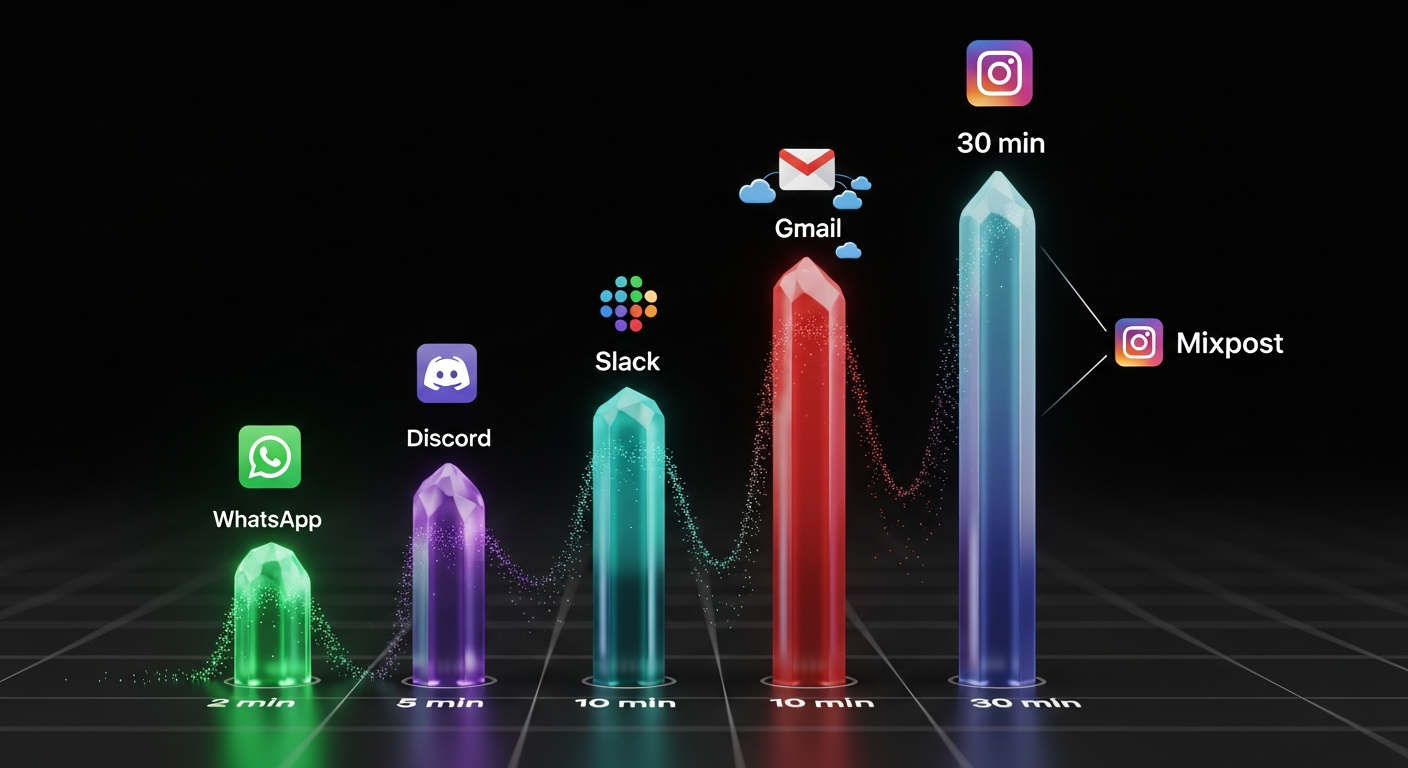
OpenClaw can read your emails, respond in your Slack channels, manage your Discord server, chat through WhatsApp, and even post to Instagram. But each integration has different requirements, quirks, and setup times. This guide covers all five, from fastest (WhatsApp: 2 minutes) to most involved (Instagram: 30 minutes via Mixpost).
One pattern applies to all of them: get a token, add it to your config, restart the gateway. The details vary, but the rhythm is the same.
Prerequisites
Before connecting any platform, you need OpenClaw running:
npm install -g openclaw@latest
openclaw onboard --install-daemon
This installs OpenClaw globally and runs the onboarding wizard, which sets up your gateway daemon and AI provider (Claude, GPT, or local models via Ollama).
WhatsApp: The 2-Minute Setup
WhatsApp is OpenClaw's original integration — the one Peter Steinberger built first. It uses Baileys to mimic WhatsApp Web, so setup is just scanning a QR code.
Connect:
openclaw channels login
Open WhatsApp on your phone -> Settings -> Linked Devices -> Link a Device -> scan the QR code in your terminal.
Configure (~/.openclaw/openclaw.json):
{
  "channels": {
    "whatsapp": {
      "dmPolicy": "allowlist",
      "allowFrom": ["+15551234567"]
    }
  }
}
Best practice: Use a dedicated phone number (spare phone with eSIM) rather than your personal number. The number only needs one verification SMS — after that, sessions persist indefinitely via creds.json.
Watch out for: VoIP numbers (TextNow, Google Voice) are blocked by WhatsApp. Use a real carrier SIM. Also, use Node.js runtime — Bun has compatibility issues with the WhatsApp connection.
Discord: Bot in 5 Minutes
Discord gives your OpenClaw agent a presence in servers and DMs via a bot application.
Step 1: Create a bot at the Discord Developer Portal. Enable Message Content Intent and Server Members Intent under Privileged Gateway Intents.
Step 2: Generate an invite URL (OAuth2 -> URL Generator) with scopes bot and applications.commands, and permissions: View Channels, Send Messages, Read Message History, Embed Links, Attach Files.
Step 3: Configure:
export DISCORD_BOT_TOKEN=your_token_here
Or in config:
{
  "channels": {
    "discord": {
      "enabled": true,
      "token": "YOUR_BOT_TOKEN"
    }
  }
}
Security tip: DMs default to pairing mode — unknown users receive an expiring code they must share with you for approval. For servers, use mention-gating so the bot only responds when @mentioned.
Slack: 10 Minutes to Full Workspace Integration
Slack is the most feature-rich integration, with two connection modes: Socket Mode (WebSocket, no public endpoint needed) and HTTP Mode (Events API, better for production).
Step 1: Create a Slack app at api.slack.com/apps -> From Scratch.
Step 2: Enable Socket Mode. Generate an App-Level Token with connections:write scope.
Step 3: Add Bot Token Scopes (OAuth & Permissions): chat:write, im:write, channels:history, groups:history, im:history, mpim:history, channels:read, groups:read, im:read, mpim:read, users:read, reactions:read, reactions:write, files:write
Step 4: Install to Workspace and copy the Bot User OAuth Token.
Step 5: Enable Event Subscriptions: message.*, app_mention, reaction_added, reaction_removed
Step 6: Configure:
export SLACK_APP_TOKEN=xapp-...
export SLACK_BOT_TOKEN=xoxb-...
Step 7: Enable Messages Tab in App Home for DMs, then invite the bot to channels with /invite @YourBot.
Threading tip: Configure how the bot replies:
{
  "channels": {
    "slack": {
      "replyToModeByChatType": {
        "direct": "all",
        "group": "first",
        "channel": "off"
      }
    }
  }
}
Gmail: Real-Time Email in 20 Minutes
Gmail is the most complex setup but delivers the most powerful result: real-time email processing using Google Cloud Pub/Sub. No polling. Emails trigger instant notifications.
The fast way:
openclaw webhooks gmail setup --account your@gmail.com
This auto-configures everything — Tailscale Funnel, hooks, Gmail preset, and watcher auto-start.
The manual way (if you need control):
- Create a Google Cloud project and enable Gmail API + Pub/Sub API
- Create a Pub/Sub topic and grant Gmail push permissions
- Configure OAuth (Desktop app type) and download credentials JSON
- Add hooks configuration to OpenClaw:
{
  "hooks": {
    "enabled": true,
    "token": "OPENCLAW_HOOK_TOKEN",
    "path": "/hooks",
    "presets": ["gmail"]
  }
}
- Start the watch:
gog gmail watch start --account your@gmail.com --label INBOX --topic projects/<project-id>/topics/gog-gmail-watch
What you can do:
- "Check my inbox for anything urgent"
- "Summarize the last 10 emails from my team"
- "Draft a reply to Sarah's project email"
- "Find all unread emails about invoices"
Security: OAuth tokens stored locally. Read-only scope available. Revocable via Google security settings anytime.
Instagram: 30 Minutes via Mixpost
Here's the honest truth: Instagram has no native OpenClaw integration. Instagram's API is too restrictive for personal accounts.
The best workaround is Mixpost — a self-hosted, open-source social media scheduler available as an OpenClaw skill from ClawHub.
Step 1: Self-host Mixpost (requires PHP 8.2+, MySQL/PostgreSQL, Redis). See github.com/inovector/mixpost.
Step 2: Connect your Instagram account in the Mixpost dashboard.
Step 3: Install the OpenClaw skill:
clawhub install mixpost
Step 4: Configure with your Mixpost URL and API token.
What you can do:
- "Schedule an Instagram post for tomorrow at 3pm"
- "Check my posting queue"
- "What did I post last week?"
Bonus: Mixpost also supports Facebook, X/Twitter, LinkedIn, Pinterest, TikTok, YouTube, Mastodon, Threads, and Bluesky — so one setup covers all your social media.

The Quick Reference
| Platform | Time | Command | Key Requirement |
|---|---|---|---|
| 2 min | openclaw channels login |
Real phone number | |
| Discord | 5 min | Add bot token to config | Message Content Intent |
| Slack | 10 min | Create app + tokens | 16+ bot scopes |
| Gmail | 20 min | openclaw webhooks gmail setup |
Google Cloud project |
| 30 min | clawhub install mixpost |
Self-hosted Mixpost |
Start Here
If you're new to OpenClaw integrations, start with WhatsApp. It takes 2 minutes, requires no API keys or developer portals, and gives you the core experience: chatting with your AI agent from your phone. Once that's working, expand to wherever your communication lives.
The pattern is always the same: token, config, gateway. Your AI agent is only as useful as the platforms it can reach — so connect them all.
Based on official OpenClaw documentation and 13 sources including community guides from Codecademy, DataCamp, LumaDock, and Milvus.
Written by
Global Builders Club
Global Builders Club
If you found this content valuable, consider donating with crypto.
Suggested Donation: $5-15
Donation Wallet:
0xEc8d88...6EBdF8Accepts:
Supported Chains:
Your support helps Global Builders Club continue creating valuable content and events for the community.